Set up alerts and scheduled reports
Get told when share of voice moves or an AI crawler shows up, by email, Slack or the bell, and email a report to your stakeholders every week or month.
About 5 minutes · 5 steps
Open Notifications in Settings
In your workspace, open Settings, then Notifications. Two cards live here: Alert notifications, which watch the numbers between collections, and Scheduled Reports, which send a report on a calendar. Both are admin settings for the whole workspace.
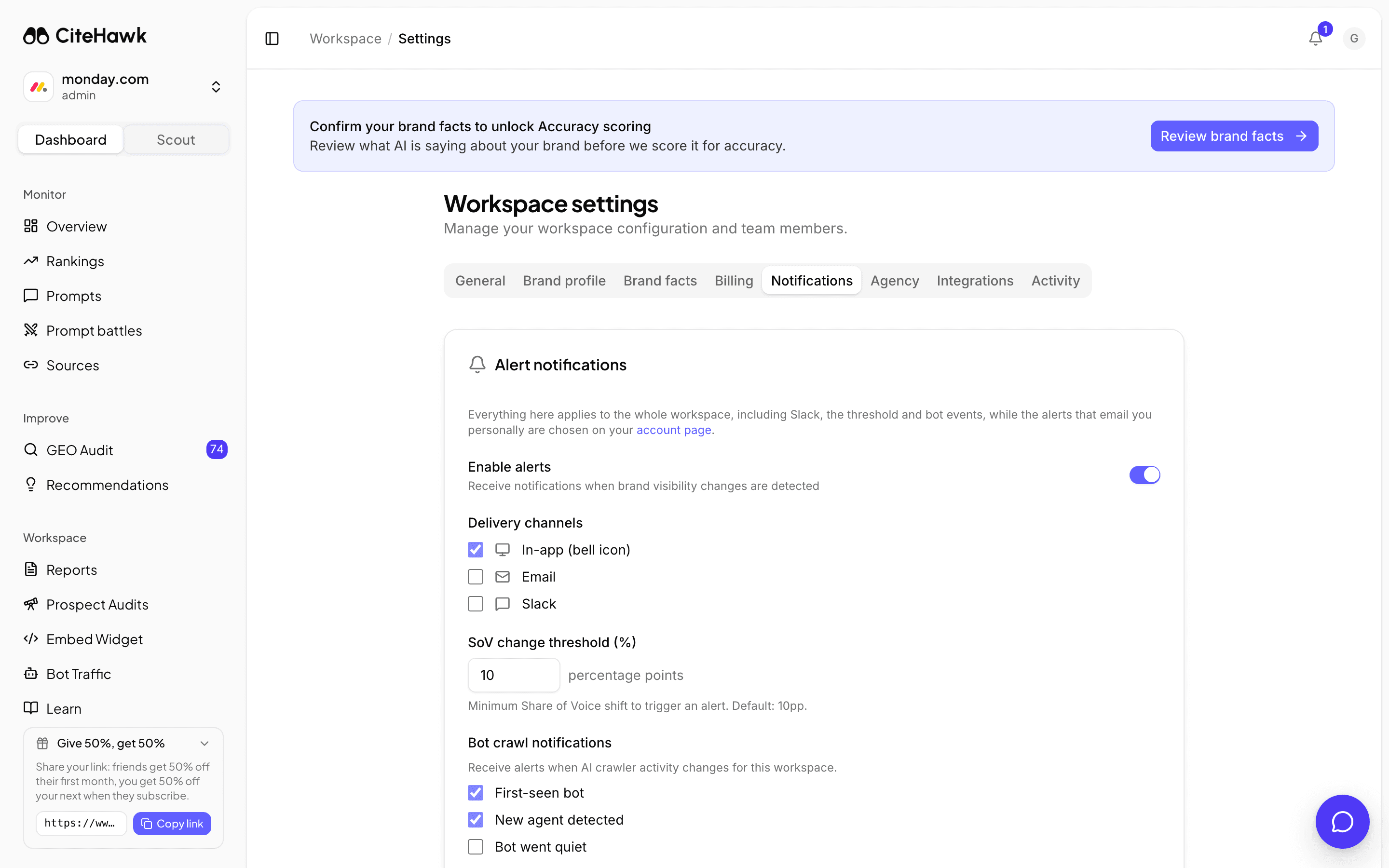
Choose where alerts go
Keep Enable alerts on and tick the channels: In-app puts them behind the bell icon, Email sends to the comma-separated recipients you list, Slack posts to an incoming-webhook URL you paste once. The webhook is stored masked; paste a new one to replace it.
Set the threshold and the crawler alerts
SoV change threshold decides how big a share-of-voice shift is worth an alert; the default is 10 percentage points. Bot crawl notifications cover the AI crawlers visiting your site: First-seen bot and New agent detected are on by default, Bot went quiet is off. Click Save alert settings.
You should see: The button confirms with Saved for a moment.
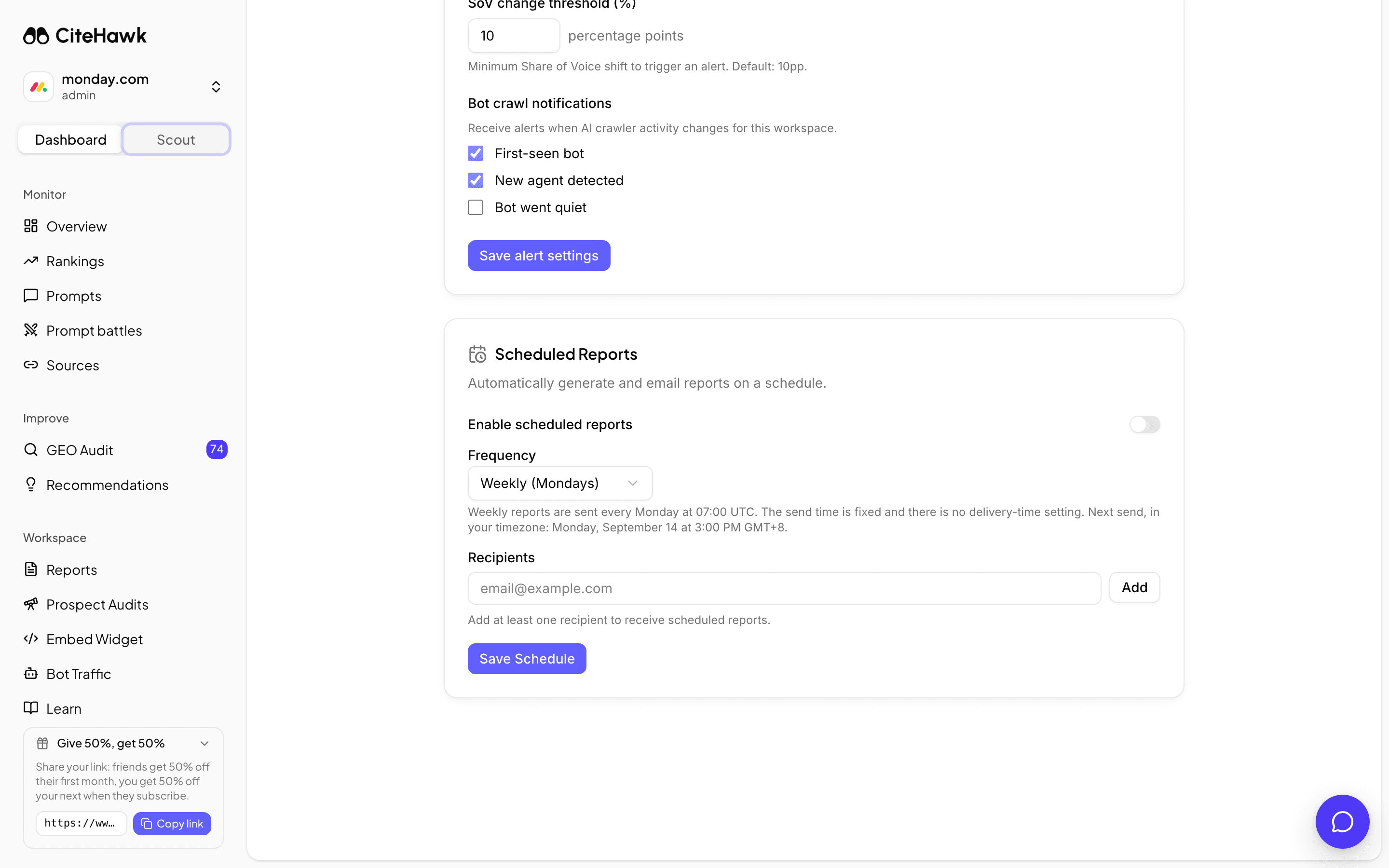
Email a report on a schedule
In Scheduled Reports, switch on Enable scheduled reports, pick Weekly (Mondays) or Monthly (1st), add each recipient with Add, then Save Schedule. Weekly reports go out every Monday at 07:00 UTC and the card shows the next send in your timezone; there is no delivery-time setting. The report goes out on any active plan; a workspace whose subscription has lapsed is asked to pick a plan first.
Set your own per-event preferences
Workspace alerts say what to watch; each person chooses how they hear about it. Open your Account page and find Notification preferences: one Email and one In-app switch per notification, per workspace you belong to. The rows are Share of voice shift, Brand appeared, Brand disappeared, Sentiment change, Budget warning, a rival buying a prompt you track, and the Weekly digest; the budget warning and the digest are email only.
If something doesn’t look right
Slack alerts never arrive
The URL must be a Slack incoming webhook for the channel you want, starting with hooks.slack.com/services. Paste it, tick Slack under delivery channels, and save. The field shows configured afterwards but never shows the URL again.
Save Schedule opens an upgrade prompt
Scheduled reports need an active subscription. Pick a plan on the Billing tab and the schedule saves.
I get in-app alerts but no emails
Two switches have to agree: Email under delivery channels on this tab, and the Email switch for that event on your Account page. Check both, and that your address is in the recipients list.