Run a GEO audit and fix what it finds
Crawl your site the way AI models do, score your content for citation readiness, and work the to-do list until the blockers are gone.
About 15 minutes · 7 steps
Open the GEO audit
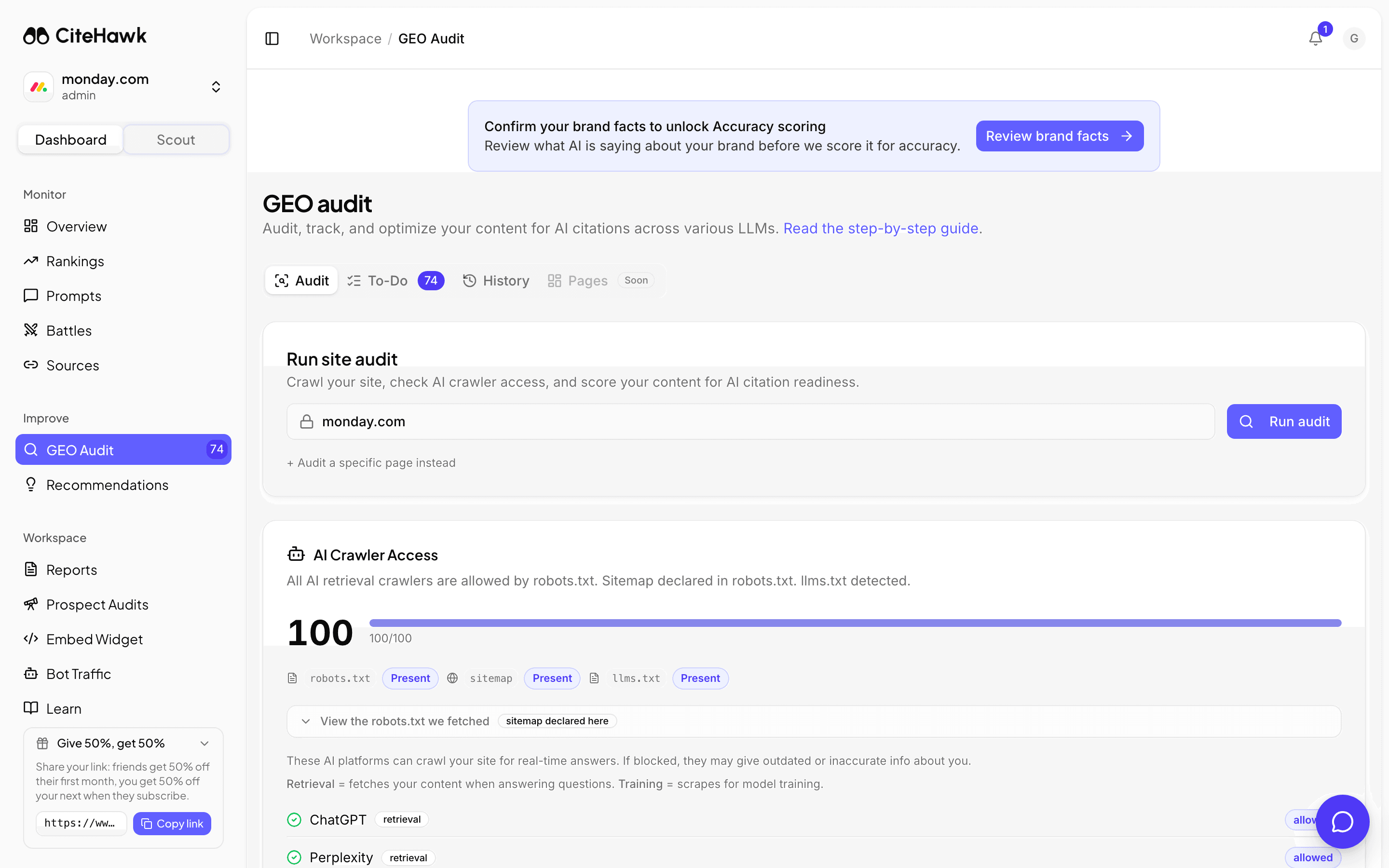
Open GEO Audit from the sidebar, under Improve. The audit crawls your site, checks whether AI crawlers can read it, and scores your content for citation readiness. It runs against your workspace's primary brand domain, shown locked in the form.
You should see: The Run site audit card shows your domain and the Run audit button.
Run the site audit
Click Run audit. The run works through its stages: discovering your pages, checking AI crawler access, analyzing how your content lines up with your tracked prompts, and writing recommendations. It takes a few minutes and keeps running if you leave the page.
You should see: The progress card names each stage as it works, and a banner announces the new to-do items when it finishes.
Read the results
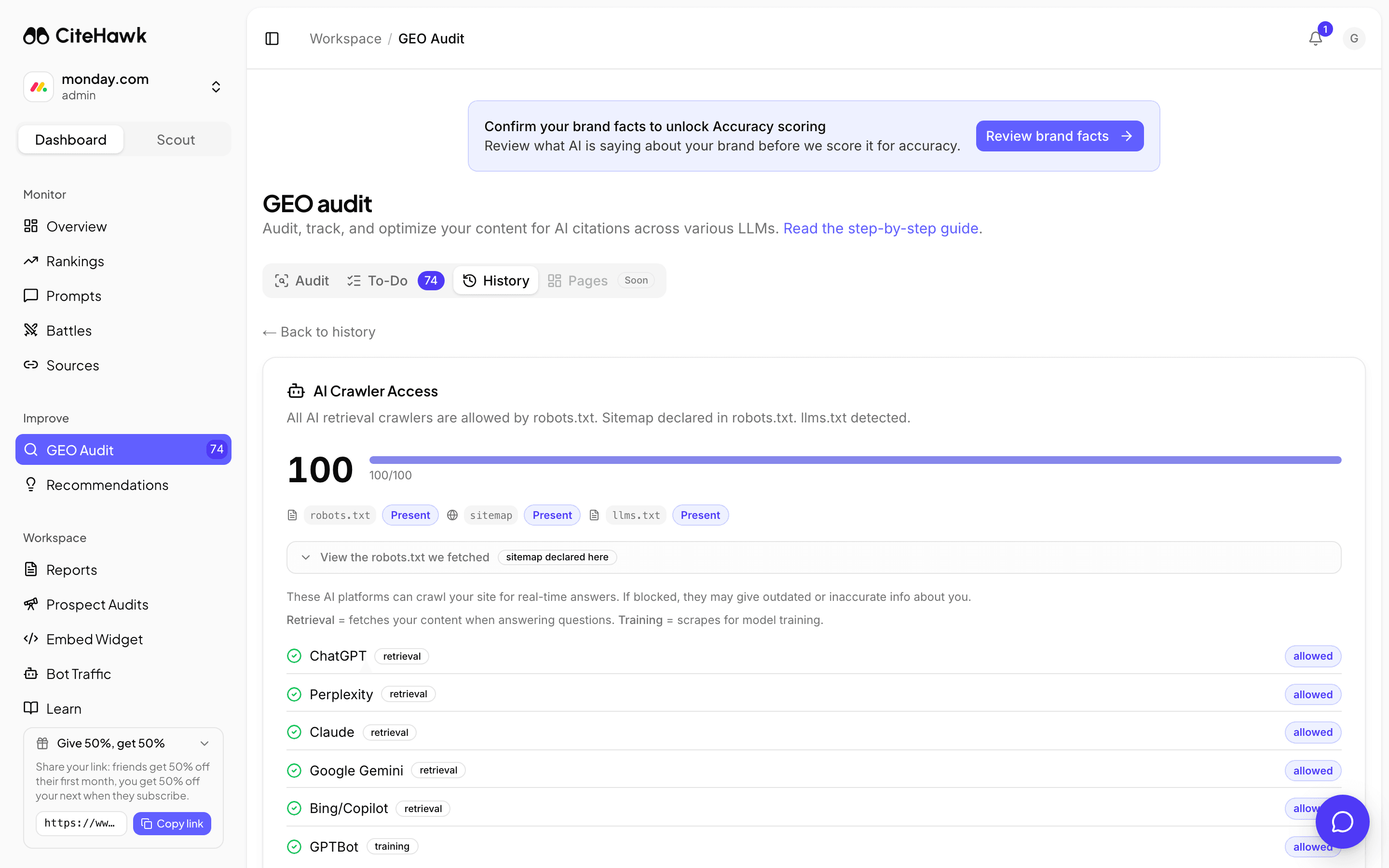
The finished audit gives your site an overall score and walks the evidence behind it: which AI crawlers can and cannot reach you, how your pages align with the prompts you track, and where your content falls short of being citable. Every issue it finds is also filed to the To-Do tab, so you do not need to act from this screen.
Work the to-do list, top first
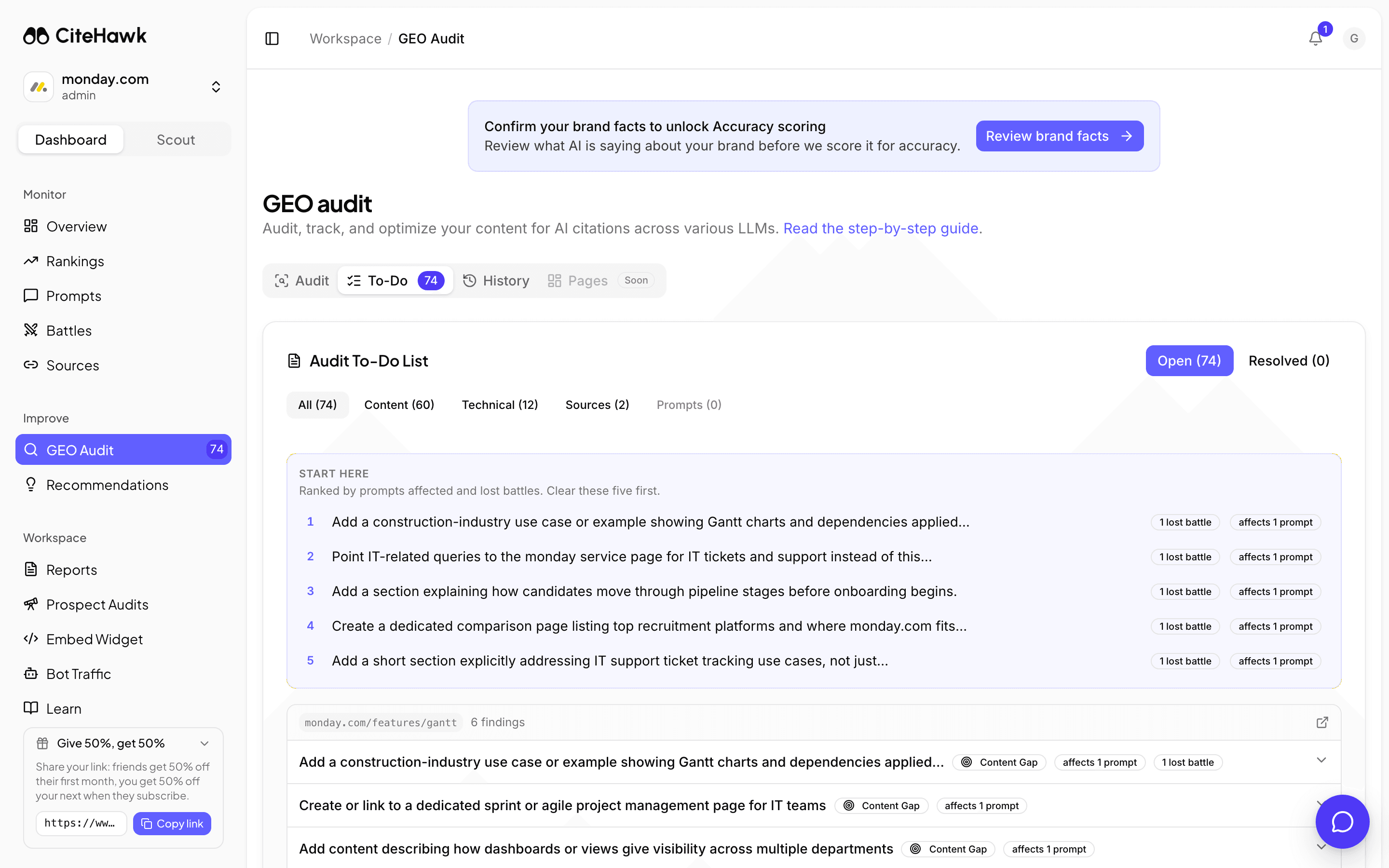
The To-Do tab turns findings into an ordered work list. Start here at the top ranks the issues that touch the most tracked prompts and lost battles, so the first hour of work lands where AI models will notice. Filter by family to batch similar fixes.
You should see: The tab badge shows your open count, and each row shows how many prompts it affects.
Let CiteHawk draft the fix
Most findings carry a Generate button that drafts the fix for you: corrected markup, rewritten copy, or a complete llms.txt file ready to copy to your site root. View page opens the affected URL so you can apply the change where it lives.
You should see: The generated fix appears under the finding with a copy button.
Resolve, re-check, repeat
Mark a finding resolved once the change ships, or use Re-check to have CiteHawk verify the live page for you. The progress bar tracks resolved against total, which is the honest measure of the audit paying off. Reopen anything that regresses.
Re-audit and compare
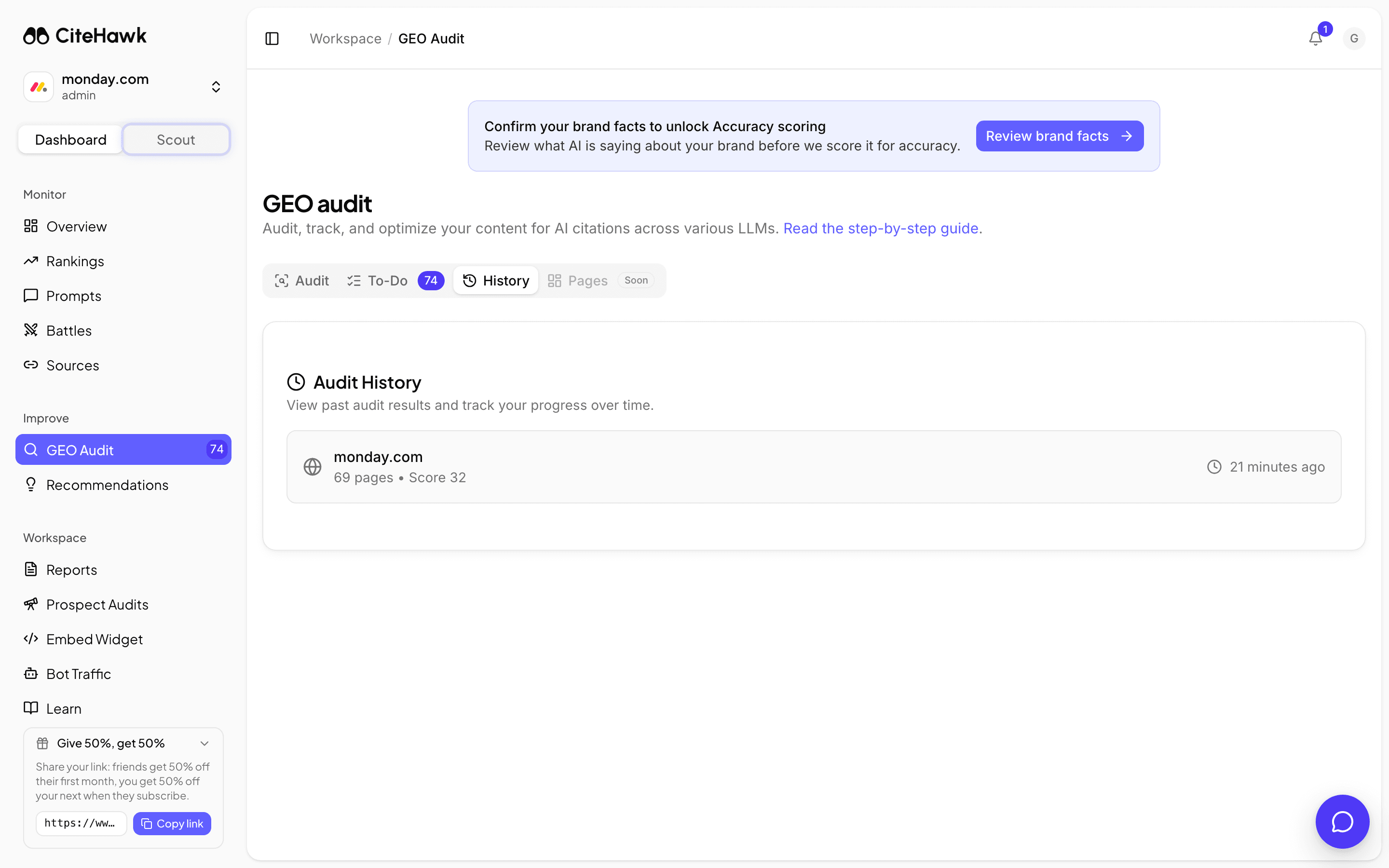
Audits are on a cadence that depends on your plan, from monthly to daily. Each new run lands in the History tab next to its score, and once the same site has two audits you can open a side-by-side comparison to see the score move as your fixes land.
If something doesn’t look right
Run audit says I have hit my limit
Audits are rate-limited by plan: monthly on Starter, weekly on Growth, daily on Agency. The To-Do list stays fully workable between runs, and Re-check on individual findings verifies fixes without a new audit.
The audit stalled and never finished
Start a new audit from the Audit tab. Failed and stalled runs do not count toward your plan's audit limit.
I want to audit a different domain
The audit is locked to the workspace's primary brand so scores stay comparable over time. To audit another domain, create a workspace with that domain as the primary brand. For one page anywhere on your own site, use Audit a specific page under the main form.
The form says no domain is configured
Your workspace has no brand with a domain yet. Add one in Settings under Brand profile, and the audit form picks it up.