Invite your team and set the right roles
Add colleagues and clients to a workspace, choose between admin, viewer and read-only client access, and change or remove access later.
About 5 minutes · 5 steps
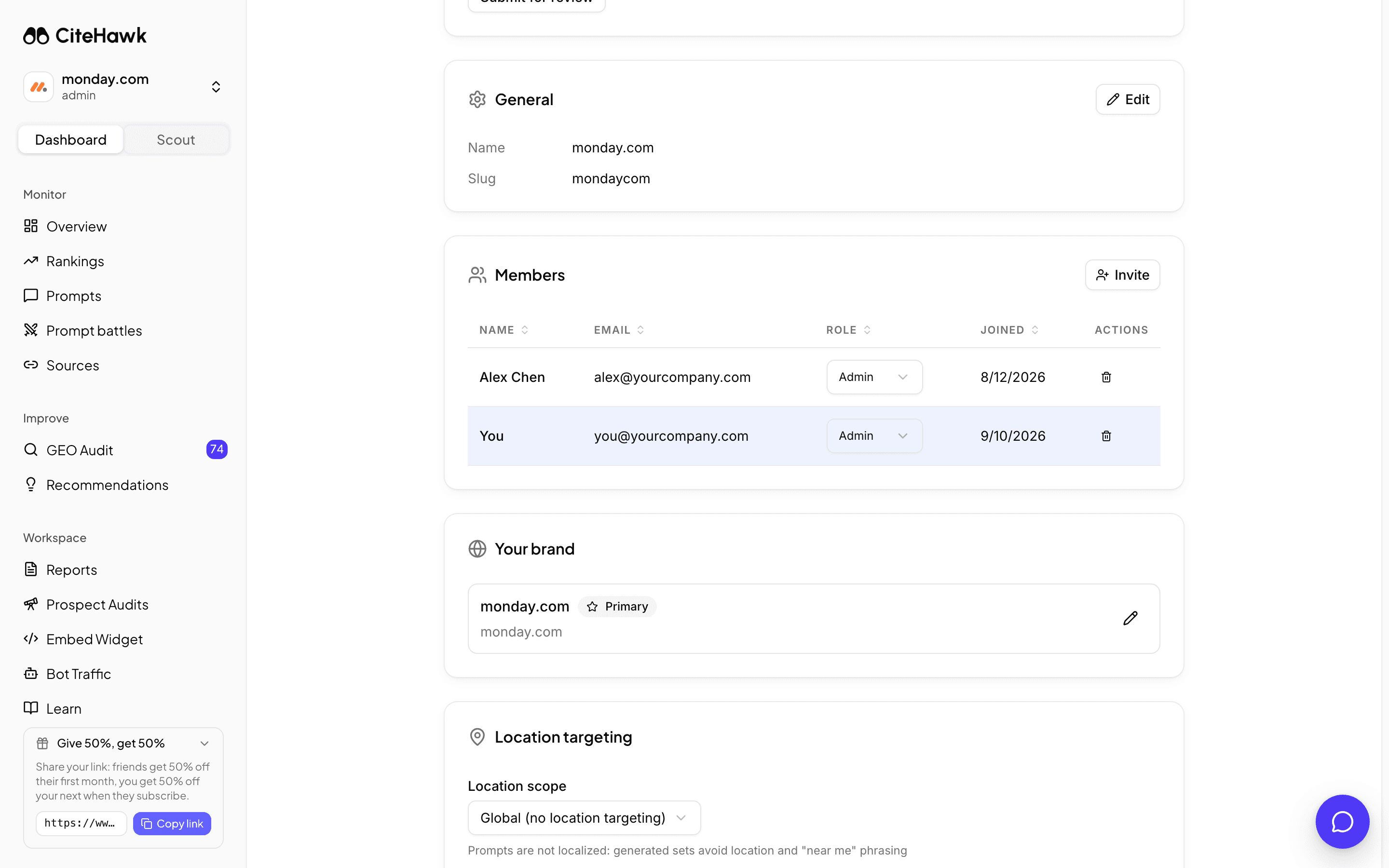
Open Members in Settings
In your workspace, open Settings. The General tab lists everyone with access under Members: name, email, role and the day they joined. Only admins see the Invite button and the role controls, so if you cannot see them, ask an admin.
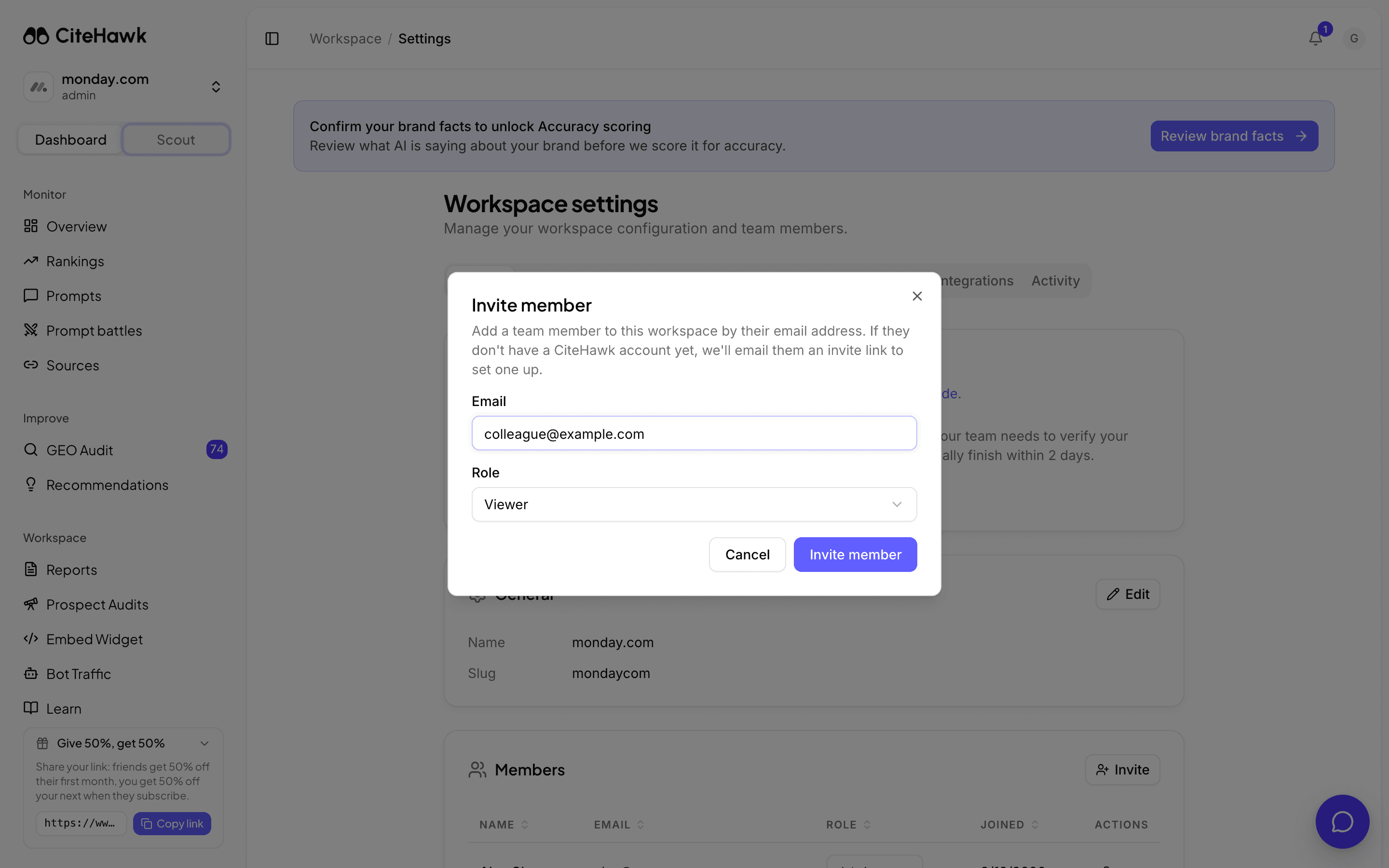
Invite a teammate by email
Click Invite, enter their work email and pick a role. If they already have a CiteHawk account they get access straight away and a sign-in link. If not, the email carries an invite link that sets the account up. One email, no codes to pass around.
You should see: A toast reads Invite sent successfully and the new member appears in the list.
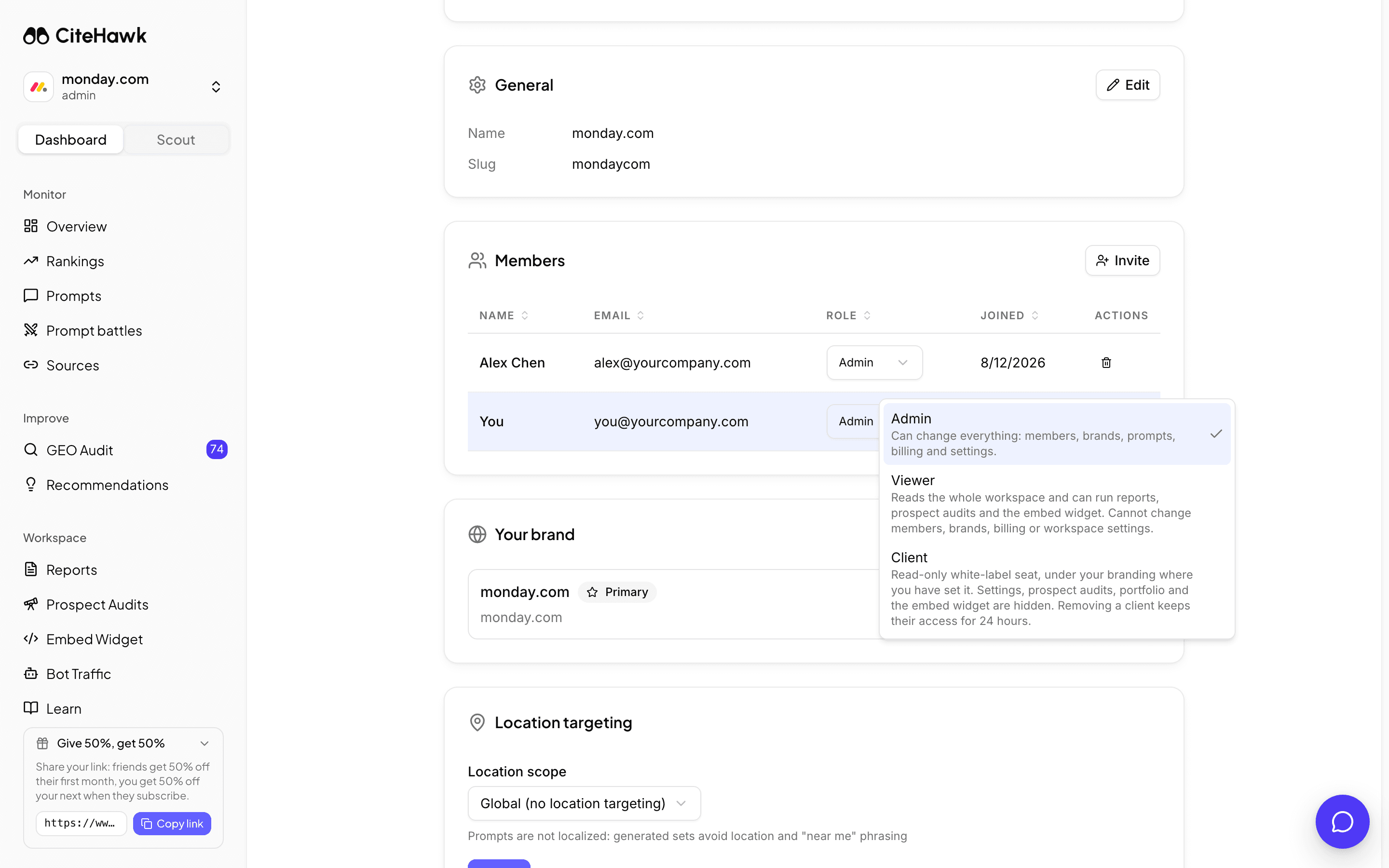
Pick the role that fits
Admin can change everything: members, brands, prompts, billing and settings. Viewer reads the whole workspace, including reports, rankings, pitch project results and the embed widget's leads, but cannot run pitch projects, buy credits, generate reports, or change members, brands, billing or settings. Client is a read-only seat for the people you report to, under your branding where you have set it: Settings, pitch projects, portfolio and the embed widget are hidden. Agencies usually make the client contact a Client and their own team Viewers or Admins. Each role shows its one-line description in the invite dialog and the role dropdown.
Change a role later
Pick a new role from the dropdown on the member row. It applies immediately; the person does not need to sign in again.
You should see: A toast reads Role updated to the role you chose.
Remove someone
Use the remove control on the row and confirm. A team member loses access immediately. A client keeps a 24-hour grace period, so a report they have open does not vanish mid-meeting; the row shows Revoked with the hours left. A workspace always keeps at least one admin: the last admin cannot be removed, so promote another member first.
If something doesn’t look right
The invite email never arrived
Check the address and their spam folder, then invite again. If the dialog answers that the person is already a member, they are in the list already and only need to sign in with that email.
I gave someone the wrong role
Change it from the dropdown on their row. No new invite is needed.
A client says they cannot find Settings
That is the role working as intended. Client access is read-only and never shows Settings. Make them a Viewer if they need to see the workspace configuration.