Set up white-label reports on your own domain
Serve client reports and your prospect funnel from youragency.citehawk.com or your own domain, with your logo, colors and booking link.
About 15 minutes · Agency plan · 7 steps
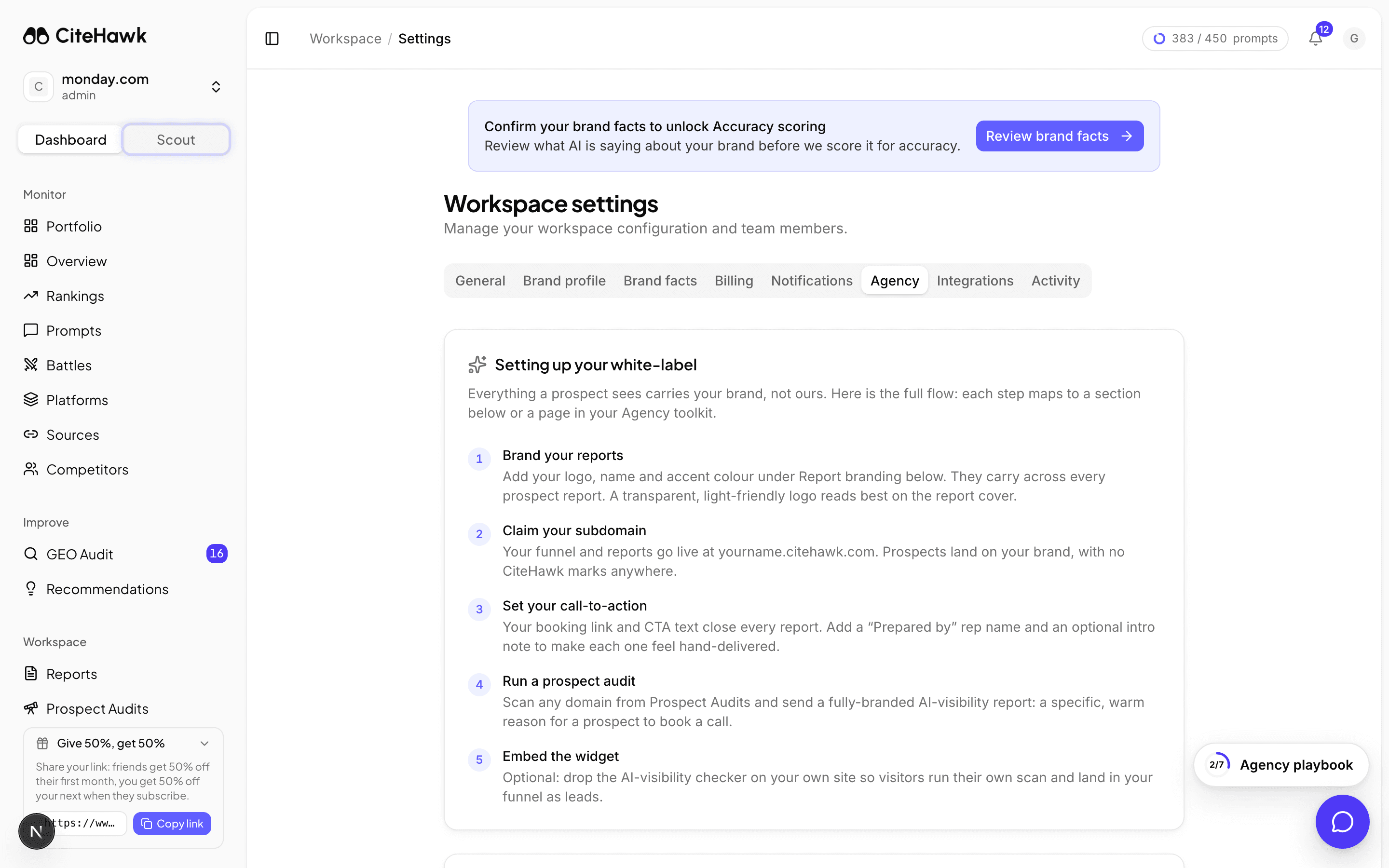
Open your workspace Agency settings
In your agency workspace, open Settings from the sidebar and switch to the Agency tab. Everything in this guide lives on this one page.
You should see: You can see the Report branding, White-label, Custom domain and Email sending domain cards.
Set your report branding first
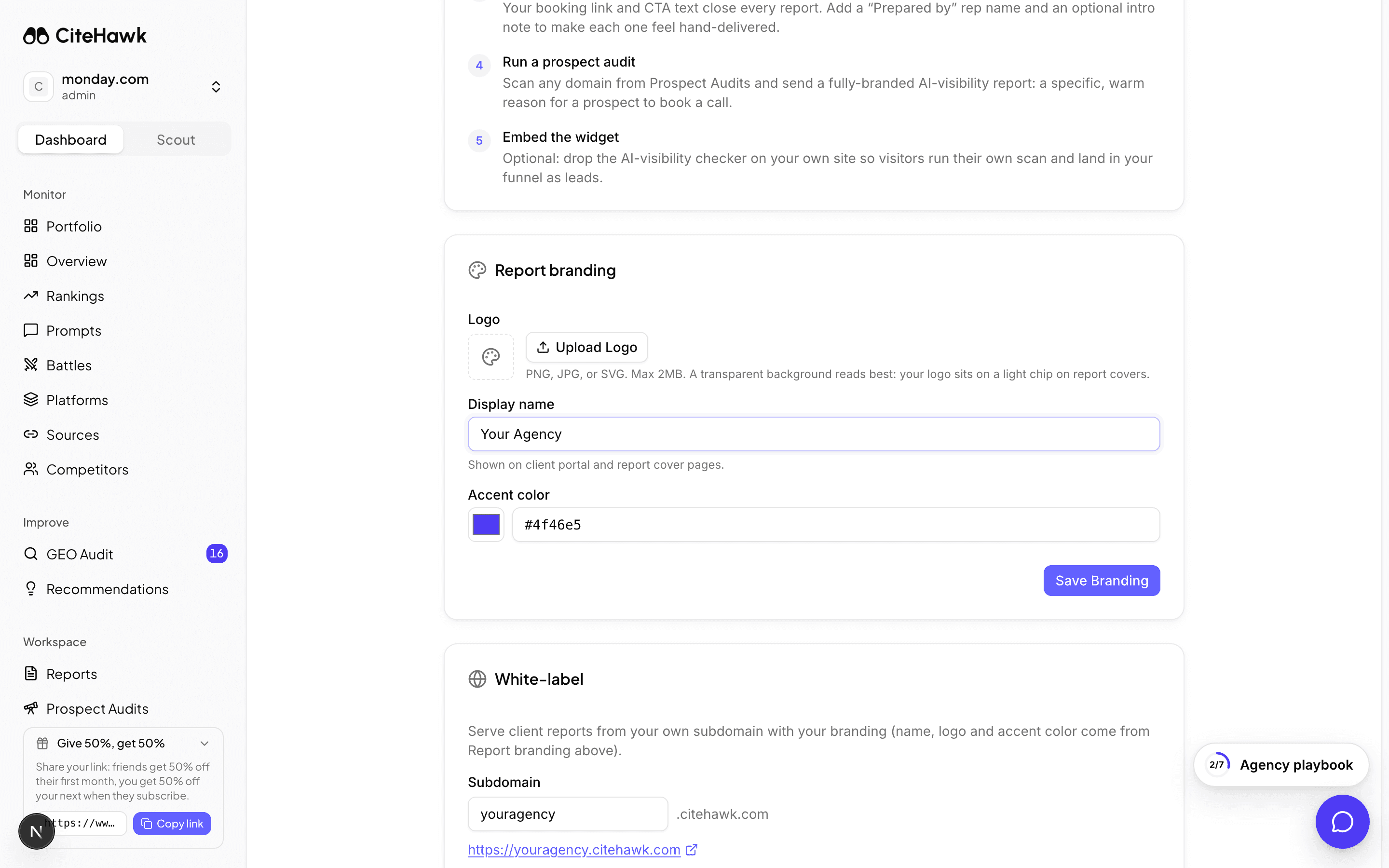
In Report branding, add your agency name, upload your logo, and pick your accent color. These carry onto every white-label surface: reports, the funnel, and client digests. Set them before anything goes live.
You should see: The preview swatch shows your accent color and your logo renders next to the display name.
Claim your subdomain
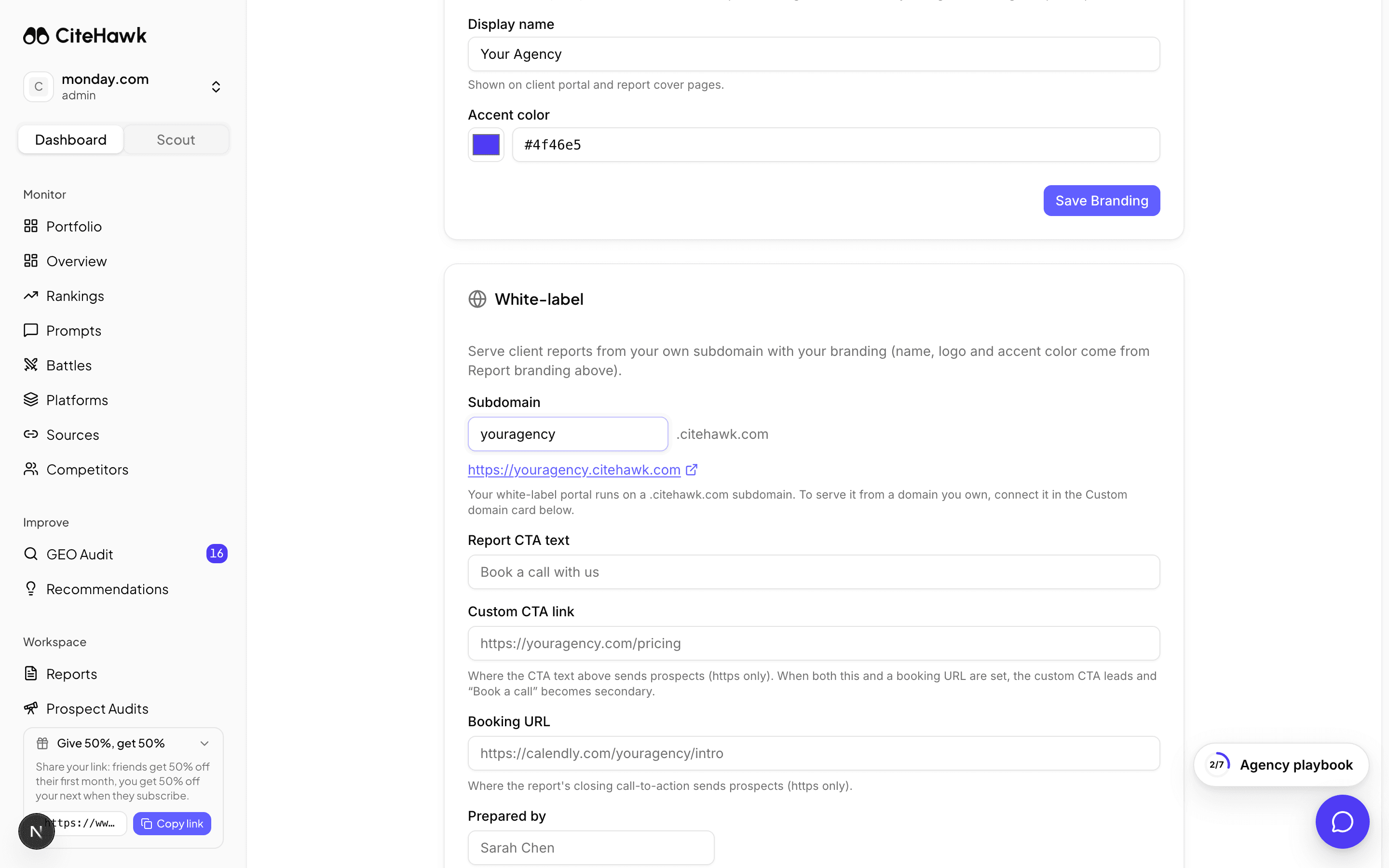
In the White-label card, type the subdomain you want. Most agencies use their name. The checker confirms availability as you type. Click Save white-label settings.
You should see: The save confirmation names your live subdomain, and a clickable https link appears under the field. Certificates issue within a minute; your funnel and reports serve there immediately.
Point reports at your pipeline
Still in the White-label card: set the report call-to-action text, your booking link, and the name reports are prepared by, then save again. Every report you send a client or prospect ends on your CTA, not ours.
You should see: The toast confirms, and the agency playbook checks off your setup steps.
Optional: connect your own domain
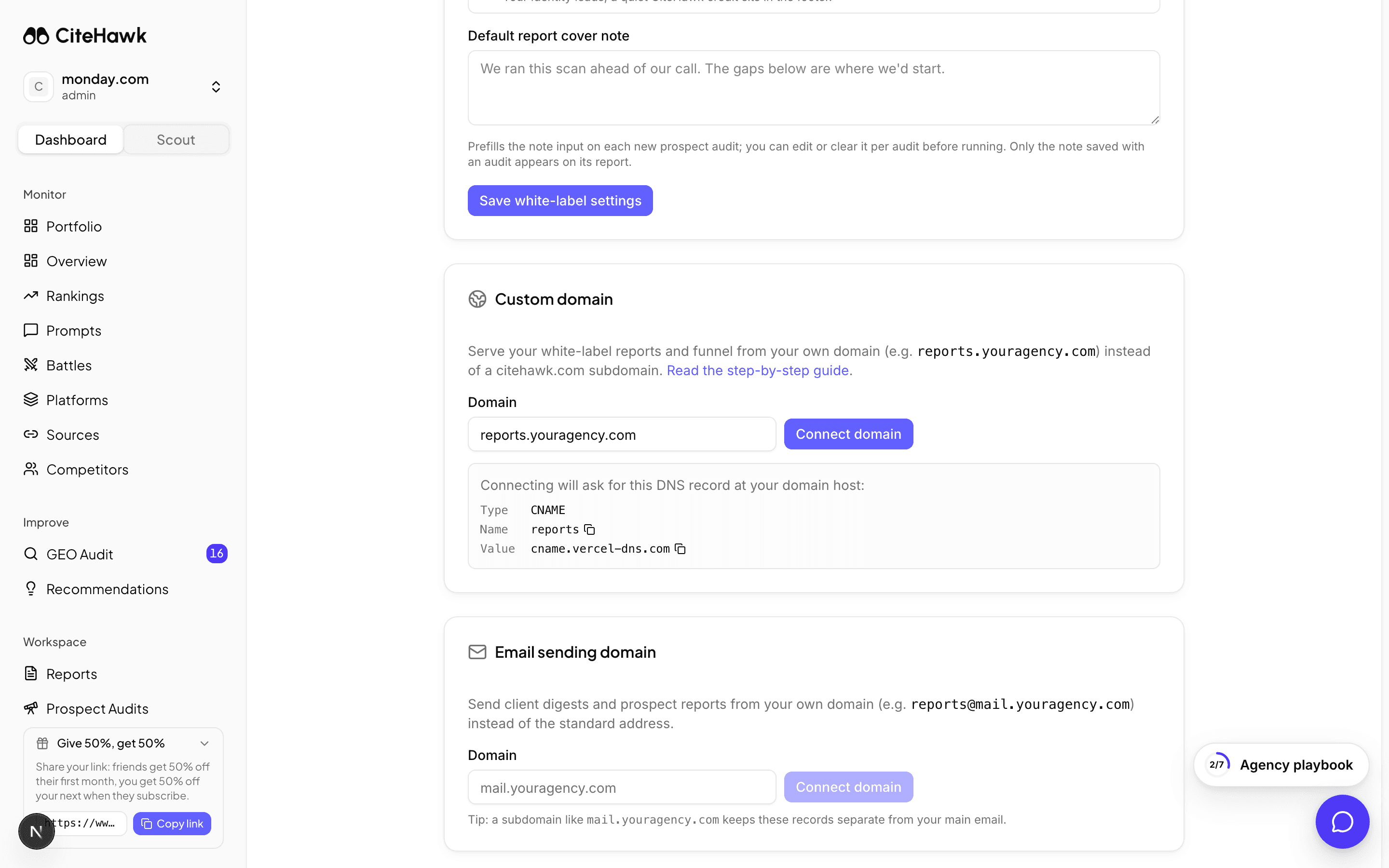
To serve from your domain instead (like reports.youragency.com), enter it in the Custom domain card. The exact DNS record you need appears before you connect: one CNAME for a subdomain, or an A record for a bare domain.
You should see: The card shows the record with copy buttons for the Name and Value fields.
Add the DNS record at your domain host
At the company that hosts your domain’s DNS (GoDaddy, Cloudflare, your registrar), add the record exactly as shown. Copy both fields from the card. This tells the internet to route your domain to your reports.
TypeValueVerify and go live
Back in CiteHawk, click Verify. DNS can take a few minutes to propagate; the card shows when it last checked. Once verified, your domain serves everything the subdomain does, and the subdomain keeps working too.
You should see: The status chip reads Verified and your domain is a clickable https link.
If something doesn’t look right
Verify keeps saying "not verified yet"
DNS changes propagate in minutes but can take up to an hour at some hosts. Double-check the record Name is exactly what the card shows (just the subdomain part, like "reports", not the full domain) and that there is no conflicting record on the same name.
My domain host refuses a CNAME on the bare domain
That is normal: bare (apex) domains take an A record instead. The card detects this automatically and shows an A record pointing at 76.76.21.21 when you enter a bare domain.
The subdomain saved but shows a security error
Certificates issue within a minute of saving. If it persists past a few minutes, re-save the subdomain. The card retries setup and tells you if anything needs our side.
I want to change my subdomain
Type the new one and save. You will be asked to confirm, because every report link shared on the old subdomain stops working immediately. Send new links after a change.